Do live wallpapers drain your MacBook battery?
Short answer: yes, but only while the wallpaper is actually drawing. Almost everything about the real cost comes down to one question, which is how often it stops.
This is the question people ask before they install any live wallpaper app, and it deserves a straighter answer than it usually gets. The honest version has three parts: yes an animated wallpaper costs more energy than a still one, no it is not the disaster people imagine, and the difference between those two outcomes is almost entirely about whether the thing ever stops rendering.
I build a live wallpaper app for macOS, so treat me as an interested party. What I can do is show you the actual mechanics, tell you exactly what my app does by default, and then show you how to measure it on your own Mac rather than taking my word for any of it.
What actually costs power
A static desktop picture is drawn once. The window server composites it, and after that a static picture costs nothing at all. There is no ongoing work, which is why nobody has ever worried about the battery cost of a JPEG.
An animated wallpaper is different in one specific way: it redraws. Every frame is real GPU work, and the cost of that work scales with two things.
- How often it draws. A wallpaper running at 60 frames per second is doing twice the work of the same wallpaper at 30, and four times the work of the same wallpaper at 15.
- How many pixels it draws. A wallpaper filling a 5K display is pushing several times the pixels of the same scene on a 1080p laptop screen. This is why the same wallpaper can feel free on one Mac and noticeable on another.
There is a third factor people underrate, which is what is in the scene. A mostly still illustration with a little drifting light is cheap. A scene with thousands of particles, several animated layers and a full-screen effect stack is not. Two wallpapers that both look "animated" in a screenshot can differ by a lot.
The part that matters more than all of that
Here is the thing that gets left out of every version of this discussion: on a normal working day, the wallpaper is behind something almost all of the time.
If you are in a fullscreen app, the wallpaper is invisible. If your browser is maximised, the wallpaper is invisible. If you got up to make coffee, the wallpaper is invisible and so is everything else. If the lid is shut or the display has slept, there is nothing to draw at all.
A live wallpaper that keeps rendering through all of that is genuinely wasteful. A live wallpaper that stops is idle for most of the day, and the question stops being interesting. So the useful thing to ask about any app in this category is not "how much power does it use" but "when does it stop".
What Vivid Walls does, specifically
These are the actual defaults in the app rather than a general description, because vague reassurance is worth nothing here.
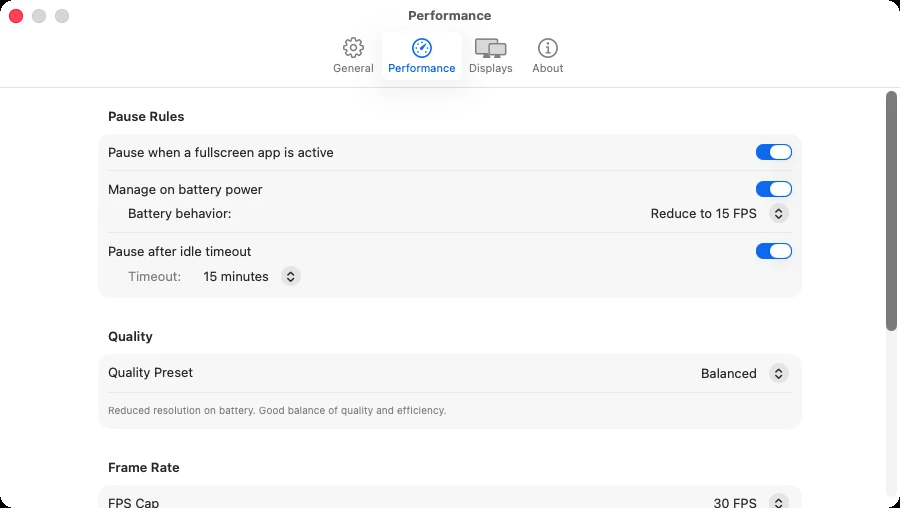
On battery power, it drops to 15 frames per second. That is the default the moment the Mac is unplugged. The alternative, if you want it, is to have it pause entirely on battery instead, which is a single setting. Plugged in, the default frame rate cap is 30 frames per second, not 60. You can raise it to 60 or uncap it if you want, and you can lower it to 24 or 15.
It stops rendering when there is nothing to render to. Specifically it stops when the display sleeps, when a fullscreen app is covering the desktop, and when every wallpaper window is completely covered by other windows. Pausing on fullscreen is on by default.
It stops when you walk away. After 15 minutes without input it pauses, and that timeout is adjustable. On by default.
It backs off when the Mac gets hot. macOS reports a thermal state to apps, and the app reacts to it: at a serious thermal state it caps to 15 frames per second regardless of your setting, and at a critical thermal state it stops rendering entirely until things cool down, then restores your setting. This one matters on fanless Macs like the MacBook Air, where thermal pressure is the mechanism that would otherwise make everything else on the machine feel slow.
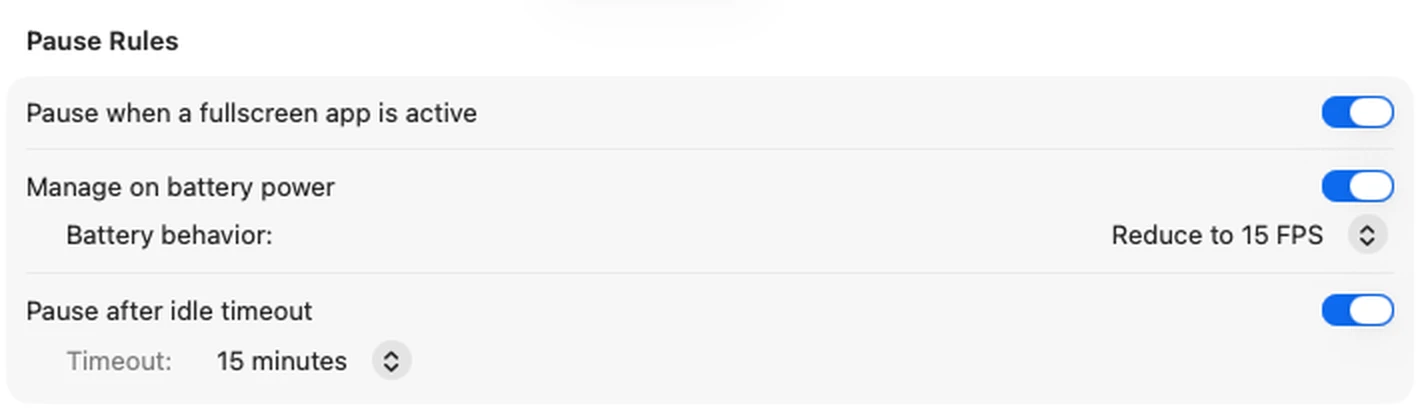
These overlap, and when several apply at once the strongest one wins. Anything that means the wallpaper cannot be seen results in a full stop rather than a reduction.
If you want it cheaper still
In rough order of how much difference they make:
- Lower the frame rate cap. This is the biggest single control you have, and it is close to linear. Going from 30 to 15 roughly halves the drawing work. Many scenes, especially slow atmospheric ones, look essentially the same at 15.
- Switch the battery behaviour to pause entirely if you would rather have a still desktop than a slow one when unplugged.
- Shorten the idle timeout from 15 minutes to something shorter.
- Pick a calmer scene. A wallpaper with gentle motion in part of the frame costs less than one with heavy particle work across the whole frame, and on a laptop screen you often cannot tell the difference from a normal viewing distance anyway.
How to measure it on your own Mac
You should not have to trust a developer on this, including me, and you do not have to. The measurement takes about a minute:
- Open Activity Monitor (it is in Applications, Utilities).
- Click the Energy tab.
- Find the wallpaper app in the list and watch its Energy Impact while the wallpaper is running.
- Now pause the wallpaper, or put a fullscreen app in front of it, and watch the same number.
That comparison is the whole answer, and it is specific to your Mac, your display resolution and the scene you actually chose. It is worth doing with the specific wallpaper you like rather than a demo, because the range between a calm scene and a busy one is wide.
I am deliberately not publishing a "costs you X hours of battery" figure. Any single number like that is an average across hardware, resolutions, screen brightness and scenes, and it would be wrong for most of the people reading it. The Activity Monitor comparison above takes a minute and is right for you.
What about Wallpaper Engine on Windows?
A lot of people arrive at this question from the other direction, having used Wallpaper Engine on a PC and seen it show up in Task Manager. The mechanics are the same everywhere: frame rate times pixels times scene complexity, minus whatever the app does when the wallpaper is not visible. Wallpaper Engine has its own performance options for exactly this reason.
The relevant difference on a Mac is not the software, it is the hardware. Apple Silicon Macs have a unified memory architecture and a GPU built for sustained low-power work, and the display pipeline is doing compositing continuously in any case. That is a genuinely good fit for this kind of workload. It is also why a native Metal implementation matters more than it sounds: an app that runs the wallpaper through a wrapped web view is paying an overhead that has nothing to do with the wallpaper itself.
If you are specifically wondering whether you can bring a Wallpaper Engine library across to a Mac, that is covered in how to import your Wallpaper Engine library to Mac, and the general state of play is on does Wallpaper Engine work on Mac.
So, should you use one on a laptop?
If the app stops rendering when the wallpaper is not visible, and you cap the frame rate somewhere sensible, a live wallpaper is a small ongoing cost rather than a battery emergency. If the app does none of those things, it is a genuinely bad idea on a laptop.
That is the question worth asking of any app in this category, including mine. Ask what it does when you are in a fullscreen app, when the display sleeps, and when you are on battery. If the answer is vague, that is the answer.
Common questions
Do live wallpapers drain your MacBook battery?
A live wallpaper uses power only while it is actually drawing frames. A still wallpaper is drawn once and then costs nothing, so yes, an animated one uses more energy than a static image. How much more depends on the frame rate, how much of the screen is changing, and above all on whether anything stops it when you are not looking at it. A live wallpaper that pauses on fullscreen, on display sleep and when you walk away is idle for most of a working day.
What does Vivid Walls do on battery power by default?
It drops to 15 frames per second as soon as the Mac is running on battery, rather than stopping. The alternative setting is to pause entirely on battery. The default frame rate cap when plugged in is 30 frames per second.
When does Vivid Walls stop rendering automatically?
When the display goes to sleep, when a fullscreen app is covering the desktop, when every wallpaper window is completely covered by other windows, and after 15 minutes without input. Pausing on fullscreen and pausing when idle are both on by default, and the idle timeout is adjustable. It also reacts to heat: at a serious thermal state it caps to 15 frames per second, and at a critical thermal state it stops rendering until the Mac cools down.
How can I measure what a live wallpaper actually costs on my Mac?
Open Activity Monitor, choose the Energy tab, and compare the Energy Impact figure for the wallpaper app while the wallpaper is running and again while it is paused. That measures your Mac, your resolution and the scene you actually picked, which is the only number that applies to you.
Does a 4K live wallpaper use more battery than a 1080p one?
Generally yes, because the cost of a frame scales with the number of pixels drawn. A wallpaper filling a 4K or 5K display draws several times as many pixels per frame as the same scene at 1080p. Lowering the frame rate cap is usually the more effective control, because it reduces how often those pixels are drawn at all.
What you need
- macOS 14.0 or later
- An Apple Silicon Mac, meaning M1 or later. Intel Macs are not supported.
- Free to download, 3-day trial; $9.99 once unlocks the full library. There is no subscription.
If you want to see what these scenes actually look like in motion before worrying about any of this, the anime live wallpapers roundup has video of ten of them running on a real desktop. For the wider picture of what is possible on macOS, there is how to get animated wallpapers on Mac.